What’s up, everyone!
This week I’m revisiting the business continuity and disaster recovery (BCDR) options for Windows 365. In my first post I mainly explored the cross-region disaster recovery add-on. Since then the legends at Microsoft have continued developing BCDR in the world of Windows 365 so it’s high time to revisit this topic and see what options are available to us at this time.
Enjoy!
The story of the Windows 365 platform and it's workloads...
Windows 365 is a very easy service that is managed by Microsoft. But if you look under the hood, you could actually see a couple of moving parts if you will.
Like any service, Windows 365 needs a platform to run on. And you could divide that platform into a couple of categories;
- The Windows Cloud management platform that Windows 365 admins access and use to configure and manage Windows 365.
- The Windows Cloud connectivity platform is used to connect from your local device to your Cloud PC, choosing the best routes etc.
- The workloads, or Cloud PCs, are designed with a couple of BCDR functions all part of the service at no additional costs. And you have the option to layer on additional capabilities to further increase the resiliency of your Cloud PCs.
But before we dive into the good stuff, it might be worth to have a quick recap on some Azure terminology:
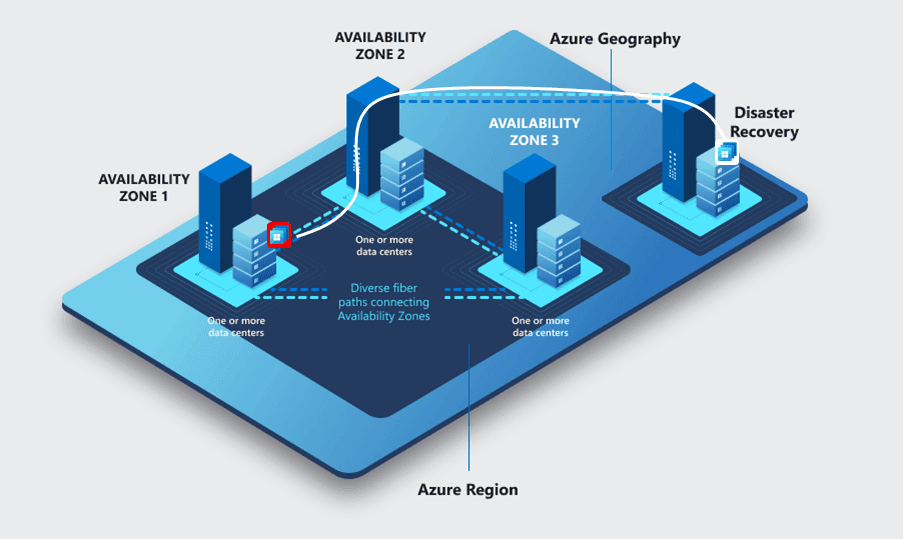
Geography – Region – Availability Zone – Datacenter
- Geography represents a market (like Europe or US East or Central) and ensures that customer data stays within that geography. It contains multiple regions.
- A region represents a part of the Geography (like US Central or West Europe) and contains one or more datacenters.
- An availability zone represents one or more datacenters that are physically separated. A failure in one zone cannot affect another zone in the same region.
- A datacenter probably does not need any introduction 🙂
Let’s shift gears and move over to the Windows Cloud management platform.
The Windows Cloud management platform
And start with the question what the Windows Cloud management platform is…
The Windows Cloud management platform are the moving parts that you use to manage your Windows 365 Cloud PCs, so think of the Microsoft Intune admin center (W365 Enterprise) and the Cloud PC end user portal (W365 Business). These services are made redundant in the same Azure region and of course in other Azure regions in case one region is affected by an incident. There is actually a nice diagram available to us by Microsoft that outlines this perfectly:

W365 built-in disaster recovery
The good news is that Windows 365 is designed with BCDR in mind and it does that on multiple levels:
- Automated in-zone disaster recover for compute resources
- The Cloud PC Management Service is highly available since it has a regionally redundant architecture as part of the Windows Cloud management platform
Automated in-zone disaster recovery for compute
Azure has the ability to automatically detect compute failures and move affected Cloud PCs to another healthy resource in the same availability zone, like when there is a power outage in one datacenter. It does this by saving three copies of the disk across resources in the same availability zone. In case of an incident, this happens:

There is more good news ! This is all part of the license which means no additional licensing costs or configuration needed!
The takeaway is that the in-zone DR capabilities protect against compute incidents in a single availability zone. It will not protect against scenarios where the availability zones or Azure region is impacted.
Cross region disaster recovery
You as an awesome Windows 365 admin have the option to expand on those capabilities by adding the cross region disaster recovery add-on for a group of Windows 365 users. There are a couple of key differences when compared against the automated in-zone disaster recovery for compute:
- The cross region disaster recovery requires an add-on license.
- The automated in-zone disaster recovery for compute is an automated process. An admin is involved to manually move the affected Cloud PCs to the backup region when using the cross region disaster recovery solution.
- When a Cloud PC is protected by the add-on, Azure will copy the latest snapshot to the backup region. When the Windows 365 admin activates the failover, Azure will try to create a temporary Cloud PC with the same specifications in the primary region and attach the snapshot of the disk. If that succeeds, the user can sign in to the temporary Cloud PC and resume their work. This process could fail if there is no capacity at the backup region or when the backup region is not in a healthy state.
- The temporary Cloud PC is deleted in the backup region once the Windows 365 admin deactives the cross region disaster recovery. User data saved in the cloud like Onedrive is not affected, however data stored on the temporary Cloud PC is not saved.
So what does that look like?
Disaster recovery plus
There are a lot of similarities when comparing the cross region disaster recovery to the disaster recovery plus add-on. Just like the cross region disaster recovery add-on, one copy of the Cloud PC disk is stored in the backup region and 2 copies remain in the original availability zone.
There are a couple of differences:
- Cross region DR is best effort
- Disaster recovery plus will be prioritised over cross region
- Disaster recovery plus comes with an SLA
How to enable CRDR or DR Plus
The configuration part of these add-ons is done using user settings. From the Microsoft Intune admin center, select Devices, Windows 365, Settings, + Create and select User Settings.
Locate the Optional Business Continuity and Disaster Recovery Settings section and select the add-on you wish to enable.

Assign the user settings to a group of users. This will impact all of the Cloud PCs that are assigned to those users.
Activating the disaster recovery scenario is a manual action and can be done using bulk device actions which you can find in the Windows 365 blade in Microsoft Intune admin center.
Select the following to (de)activate the DR action:

You can monitor the health status of the snapshots and other things like DR status in the corresponding report named Cloud PC optional business continuity and disaster recovery status report. You can find it in Microsoft Intune admin center, Reports, Cloud PC Overview, Cloud PC optional business continuity and disaster recovery status.
Honorable mentions
There are a couple of honorable mentions to be made here. Let’s start with something that’s been around since the release of Windows 365:
Point-in-time snapshots
The idea of using Windows 365 Cloud PCs is to give your end users the experience of a local device running in the cloud. So what’s the first thing you do if a device does not like it should? Well, you give it a reboot. If that doesn’t fix things, you also have the option to revert to an earlier point in time. You can choose between three restore points:
- 10 short term restore points which Windows 365 can configure at an interval from 4 up to 24 hours.
- 4 long term restore points which are automatically created by the Windows 365 service at a 7 day interval. Windows 365 admins cannot change this interval.
- Manual restore points can be created and will stay available for the duration of 28 days.
Another honorable mention is Windows 365 Reserve.
This license type allows users to connect to a Cloud PC for a maximum of 10 days per year. It’s meant to assist users when they cannot access their corporate desktop, examples would be when they forgot their laptop to a conference or hotel, or perhaps their physical device broke down and it takes a bit of time to send a replacement.
I’ve written a post on Windows 365 Reserve (here) if you want to read up on this new offering.
Resources
I used the following resources for this post:
Business continuity and disaster recovery with Windows 365 | Microsoft Learn
Set up cross region disaster recovery in Windows 365 | Microsoft Learn
Activate/deactivate cross region disaster recovery in Windows 365. | Microsoft Learn
Cloud PC optional business continuity and disaster recovery status report. | Microsoft Learn
Windows 365 service architecture and resilience | Microsoft Learn
Overview of restoring a Cloud PC to a previous state with Windows 365 Enterprise | Microsoft Learn