What’s up, everyone!
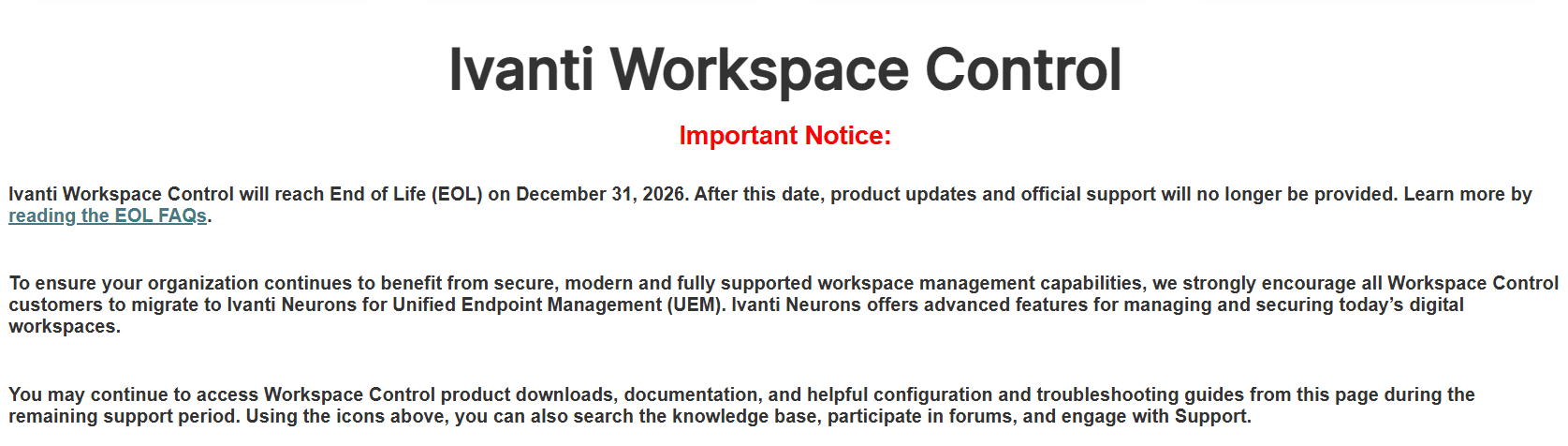
Somehow it only feels like a couple of years ago when I worked with a user environment manager called RES PowerFuse. It allowed admins to manage user profiles when signing in to their desktops by configuring the shortcuts in the start menu, set desktop icons, configure the default printer and printer settings and a lot more. Like a true Pokemon, RES PowerFuse evolved into RES ONE Workspace, which in turn evolved into Ivanti Workspace Control. Even after all these years, Ivanti Workspace Control is a very popular user environment manager. If you, like many organizations, still use IWC, then you should know that Ivanti announced that IWC will reach end-of-life on December 31st, 2026. With that being said, you can ask yourself the question: What’s next?
Luckily our friends at Liquidware have been very active on developing their ProfileUnity solution. ProfileUnity, just like Ivanti Workspace Control, allows you to manage the user environment of your users. In this post I will guide you in the right direction to help you migrate from IWC to Liquidware ProfileUnity.
An introduction into ProfileUnity
Liquidware offers ProfileUnity as its User Environment Manager (UEM) solution. Just like Ivanti Workspace Control, you as an admin have the option to manage the user environment giving your end users the same streamlined experience that they are used to. You can implement ProfileUnity on various desktop platforms, delivered by Citrix, Omnissa, Azure Virtual Desktop, Windows 365 and physical desktops.
ProfileUnity supports desktops in a local domain and entra joined desktops and you can even store the profile data locally on a file share or on cloud storage like Microsoft Azure, Amazon S3 or Google Cloud.
It even supports various scenarios like capturing user settings on a Windows 10 desktop and migrate them to a Windows 11 desktop helping you on your migration process from W10 to W11. Another example is adding ProfileUnity as a backup for FSlogix on RDS or AVD environments. ProfileUnity is a great UEM solution on Windows 365 where FSlogix is not supported.
You can kick the tyres so to speak by downloading ProfileUnity for free using this link.
Installing and configuring ProfileUnity
Our friends at Liquidware have released a quick start guide to prepare for and install ProfileUnity.
In short you will need:
- … a server with at least Windows Server 2016 or higher to install the ProfileUnity console on.
- … to decide where to store the profile data. You can use a local file share or cloud storage.
- … in case of the cloud storage: prepare the storage and add it to the ProfileUnity console.
- … determine how to deploy the ProfileUnity agent. You can use Group Policies which can be simply deployed by the ProfileUnity console or use other solutions like Microsoft Intune.
- … in case of Microsoft Intune: download the unattended install script, edit the parameters to match your environment and store the unattended install script in a folder. Download and extract the client to the folder containing the unattended install script and Win32 content prep tool to package the folder to Win32 package. Upload it to Microsoft Intune and assign it to the desktops.
Migrating from Ivanti Workspace Control to Liquidware ProfileUnity
The ProfileUnity console is still very much empty after installing the console in your environment. So now you have a choice on how to get your relevant configuration into the ProfileUnity console.
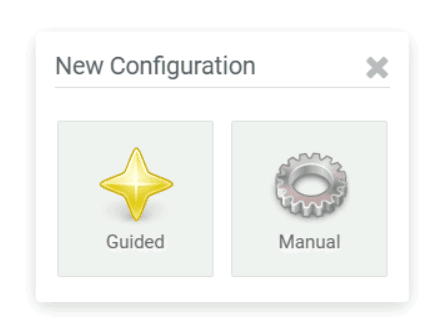
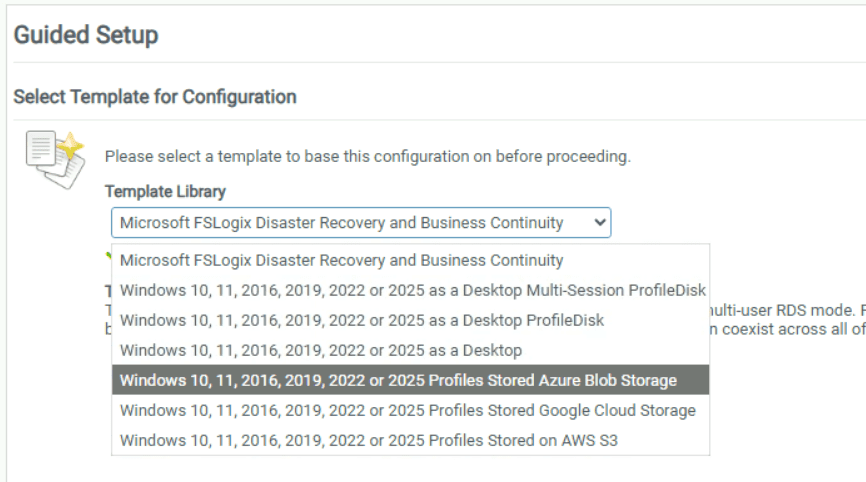
A good way to start is using the Guided setup process to add your first configuration. A configuration is probably best explained as a group of settings that you as a Liquidware admin can assign to all of your users or a group of users. Our friends at Liquidware have included the following templates to start with:
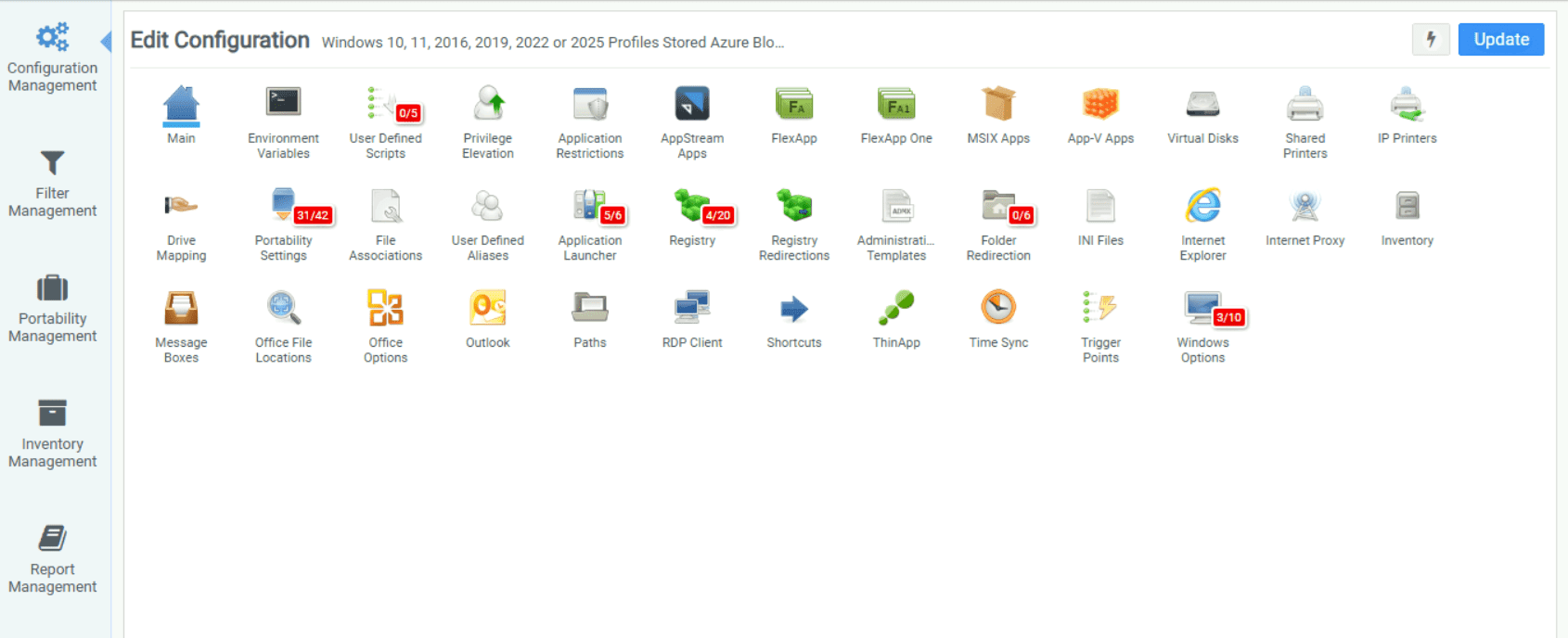
Once you created your configuration, you can go to Configuration Management and click on the configuration you want to view or edit. Do you see that some items have a red box with numbers? That means that these items are configured:
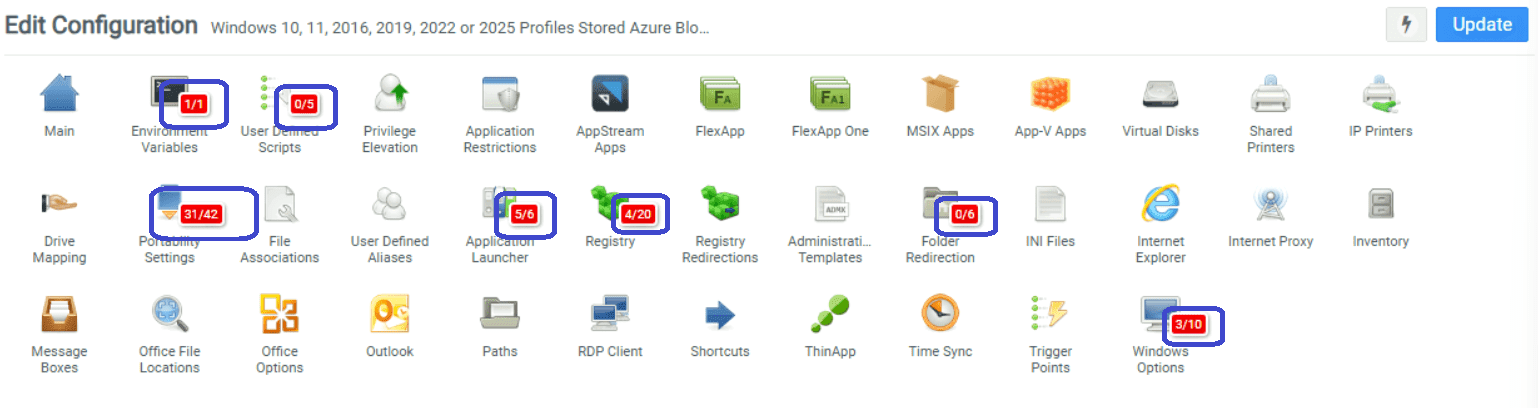
Do not forget about the blue Update button! In fact make sure to click that button each time you changed something. This will effectively update the configuration in the database and deploy an updated .ini file on your file server or cloud storage to be used by the ProfileUnity client on the desktop to retrieve the new settings.
But we are talking about a migration scenario and that means the existing configuration from Ivanti Workspace Control needs to come over to ProfileUnity. You can still do this manually if there is a lot of history you want to clean up. But wouldn’t it be easier if there was a way to export configuration from Ivanti Workspace Control and import it into Liquidware ProfileUnity?
The good news is that our friends at Liquidware have created a migration tool to help you accomplish the export in IWCs building blocks format and convert it to a format supported by ProfileUnity. It is a three step process:
- Export accesscontrols
- Import Liquidware filters
- Final migration export
The following items below are included at global and application level. Where applicable, assignments are included for AD user and/or AD groups and converted to ProfileUnity filters:
- Applications (Local apps and App-Vs)
- Execute commands
- User registry & policies
- Printer mappings
- Folder redirections
- Drive mappings
- Environment variables
- Security items (appguard whitelist)
Once completed, you will end up with a configuration that has all the Ivanti Workspace Control settings available!
There are a couple of things to know when it comes to the migration tool:
Q: How do customers get access to this migration tool?
A: Customers can ask Liquidware to support them with the conversion during the POC. This usually takes up to 30 minutes and can even be done with a Teams meeting. The migration tool itself runs in a datacenter and is only accessible to Liquidware support staff.
Q: What can customers do to improve this experience?
A: Customers can prepare by creating a single building block containing all of the configuration.
Q: Are there any costs involved with the migration service?
A: No, it is free.
Q: Does this tool migrate every setting or is there any configuration that is not yet supported?
A: It supports all configuration except:
- Custom resources folder
- Profile and homedir folder
- User settings templates
Q: Does Liquidware have others methods to migrate these settings?
A: Yes, Liquidware support staff have other methods of migrating this configuration and data.
But who better to explain the process that Liquidware’s own Berry Haveman? Here is the link to the video that explains the migration process. Enjoy!
Resources
I used the following resource for this post:
Ivanti Workspace Control End-of-Life