What’s up, everyone!
Windows 365 Link has been announced at Microsoft Ignite 2024 as a purpose built device that allows users to connect to their Windows 365 Cloud PC. Since the announcement I have been looking forward to try device out for myself and share the experience in a post.
I want to thank my friends at Microsoft for sending me a Windows 365 Link device!
Introducing Windows 365 Link
Windows 365 Link is a device with a single purpose; allowing end users to connect to their very own Cloud PC! Don’t worry, there is a lot more to uncover about the Windows 365 Link device.
Let’s talk about security
Microsoft positions the Windows 365 Link device as a secure solution, it is designed to have all the security bells-and-whistles turned on (full list here) and they cannot be turned off. Security even extends to the operating system. The device runs Windows CPC, a Windows-based operating system that only includes essential components to further reduce the attack surface of the device.
It supports a variety of peripherals that end users can connect (full list here). End users can sign in using FIDO2 passkeys either via USB or NFC, but in the last case you would need to connect a NFC reader to the device.
Updates occur automatically during off hours. All you need to do is make sure that the device is connected to internet and powered on. Standby and sleep mode are both supported in this scenario.
It’s also possible to manually check for an update from the device. From the Windows 365 Link device, select the Network, Sound and Accessibility icons follow by the mini-I icon. Then select Check for updates.


Let’s talk about capabilities
The Windows 365 Link device is available in one form factor only. It features USB (A and C) ports, an ethernet port, HDMI and a DisplayPort, Bluetooth 5.3 and Wi-Fi 6E. You can connect up to two monitors in 4k at 60Hz. Touch features are not supported.
The Link device supports media optimizations to provide a high quality user experience when using Microsoft Teams or browsing websites with multi-media content.


Setting up Windows 365 Link devices
Setting up the Windows 365 Link device is a user action. It boils down to signing in during the OOBE and it will automatically be joined to Entra and enrolled into Microsoft Intune. If you have the proper licenses sorted, configured automatic enrollment by setting MDM user scope and did not configure any enrollment restrictions, then you as a Windows 365 admin can now sit back and admire the work of your end users as the Link devices appear in your environment. It really is that easy!
What if you don’t want your users to setup the device?
In that case you can configure a Device Enrollment Manager (DEM) account which is an non-admin user that can enroll a lot of devices. Just connect the Link device and use the DEM account in the out-of-box-experience.
Here are a couple of screenshots to illustrate just how easy it is:


The Windows 365 Link device now pops up in Microsoft Intune. You can find it under Devices, Windows devices. Look for a name that starts with WCPCD:

You already guessed it, you can now manage the device using Microsoft Intune. An example are the device actions from the Link device:

There are even more ways to make your life more easy. The Link device identifies itself as Windows 365 Link. This makes it easy to create a filter in Microsoft Intune which you can use in policies should you have the need.
To create a filter, go to Tenant administration, Assignment filters, + Create button, Managed devices and give the filter a name and select Windows 10 and later as the platform. I used All Windows 365 Link devices for the name.
Select model in the property box, equals in the operator box and enter Windows 365 Link in the value box. You will end up with a syntax like: (device.model -eq ‘Windows 365 Link’)

You can always click the preview button to see which devices are detected by this filter. Click the Next and Create button to save your newly created filter.
What settings could you consider to configure using Microsoft Intune?
- Privacy settings for location, camera and Microphone.
- Setting the timezone.
- Use security key for sign in.
Working on a Cloud PC using the Windows 365 Link device
Let’s find out what it’s like to work from a Windows 365 Link device. Once you wake up the device you will see a familiar sign-in screen:

Follow the sign in steps and you will be connected to your Cloud PC.
But what happens when you have multiple Cloud PCs?
There are two options:
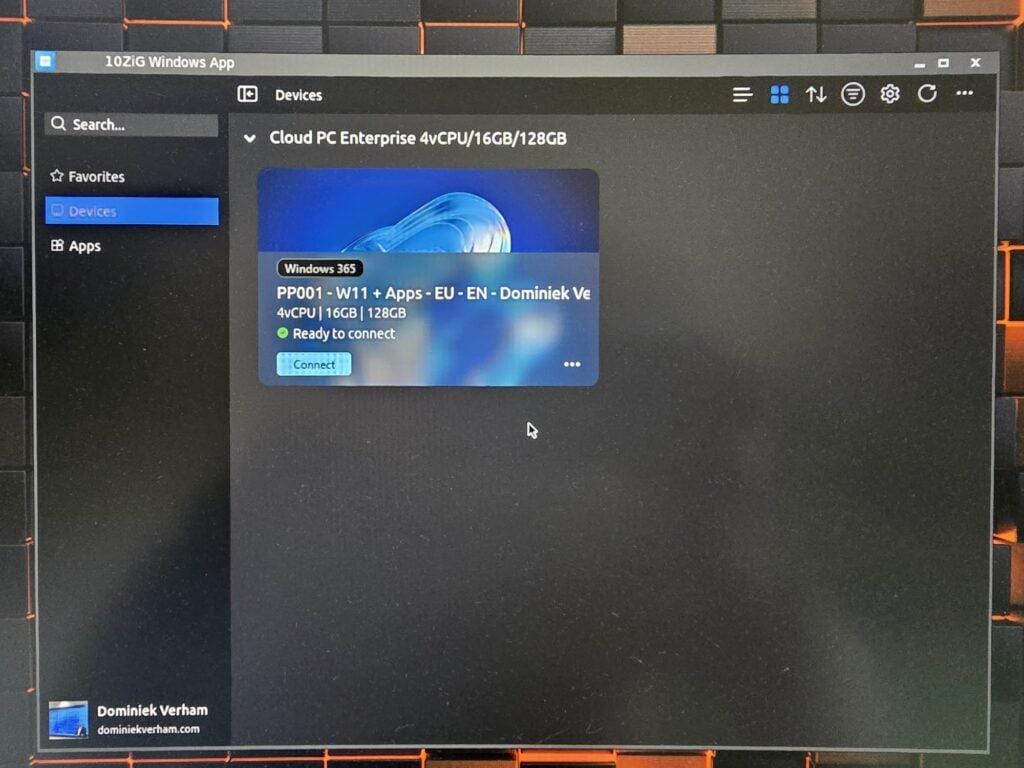
- You will see the new Connection Center and you can select the Cloud PC you want to connect to. You do have all access to the self-service options like restarting your Cloud PC or restoring your Cloud PC to an earlier point-in-time.
- You can sign in directly to the desired Cloud PC and skip the Connection Center experience. Just click the three dots and select Connect automatically.
You can still get access to the Connection Center once you configured to connect automatically. In this case you can sign in and click the Cancel button while connecting. This will bring you back to the Connection Center. You also have the option to deselect the Connect automatically option on the Cloud PC.
Alternatively you can always go to the webclient, click the 3 dots of the Cloud PC you want to set as default, click settings, from Boot to this Cloud PC (de)select Connect while signed in to device.

What's next for Windows 365 Link?
A lot of things happened in the world of Windows 365 Link in just one year. Microsoft Ignite 2025 is already over and Microsoft already announced a lot of updates for the Link device:
- Windows 365 Link now supports Windows 365 Reserve Cloud PCs.
- Windows 365 Link now supports voice access commands.
- Support for smart card redirection.
- And of course the Connection Center that I already covered in this post.
But there is more to come! In the same announcement Microsoft announced a couple of key updates planned in the first quarter of 2026:
- Support for Bluetooth pairing during OOBE.
- Support for tenant branding, like a corporate logo and name on the sign in screen.
- Bare metal recovery.
- Improvements to the sign in experience.
- Media redirection for partner solutions like Webex and Zoom.
- Expanding the Windows 365 Link availability to 7 more markets, which will result in 20 markets total.
Resources
I used the following resources for this post:
Windows 365: How to choose the best connection method for your team – Windows IT Pro Blog
Compare Windows 365 connection methods on
Windows – Windows App | Microsoft Learn
Overview of deploying Windows 365 Link devices | Microsoft Learn
Set up Windows 365 Link | Microsoft Learn
Windows 365 Link – What’s new for the first Cloud PC device -Windows IT Pro Blog