What’s up, everyone!
Microsoft has recently announced AI-enabled Cloud PCs and since then I have already seen a couple of great blogs outlining how to configure and use AI-enabled Cloud PCs like:
- The awesome Daniel Bowker – Hands on with AI-Enabled Cloud PCs
- The always! super friendly Aresh Sarkari – AI-enabled Windows 365 Cloud PCs – Full automation with PowerShell
Then I became curious about AI features in the world of desktops and it got me thinking. What AI features are already available for us to use and what platform would you need to access these features?
Are these features turned on by default, or would you need to sign up or enable features in order to see them?
Well, let’s find out more about AI features, Copilot+ and AI-enabled Cloud PCs.
Enjoy!
AI features in the world of Windows 11
Currently there are 18 AI features out there in the wild, but the user experience that you have (or which features you can actually use) depend on the type of desktop that you are using:
- a Copilot+ device.
- a Windows 365 AI-enabled Cloud PC as part of Microsoft’s Frontier program.
So before we take a look at the various AI features in Windows 11 and apps, we should actually take a look at these platforms:
Copilot+ devices
Copilot+ devices are optimized PCs to execute AI features locally. To make sure these devices are able to perform most AI features in a timely fashion, they have to meet certain requirements:
- The device needs to meet the Windows 11 system requirements.
- The device needs to have an NPU capable of performing at least 40+ TOPS.
- The device needs to have at least 16 GB of DD5/LPDDR5 RAM.
- The device needs to have at least 256 GB of SSD/UFS storage.
- These are the basic requirements and will do for most features, however specific features might have additional requirements. Luckily they are all listed on the Microsoft learn site.
Nowadays all Microsoft Surface devices are Copilot+ devices so you can muse most of the AI features without issues. But did you know that other vendors like Dell, HP or Lenovo also offer Copilot+ devices so there is a lot of choice out there if you are in the market for a Copilot+ device.
The Copilot+ devices can run on AMD/Intel processors and even ARM-based processor (Snapdragon). The available features are actually different on ARM/Intel or Snapdragon processors, I will mention this in the overview below.

Windows 365 AI-enabled Cloud PCs
Windows 365 has seen a lot of new features since it’s release and Microsoft has announced that AI features are coming to Windows 365 through it’s Frontier program.
If you just went, wait a minute! These features require an NPU, so does Microsoft just introduce an NPU to all of their servers in all of their datacenters?
Well, no. The legends at Microsoft enabled genius-mode and developed an offload mechanism for AI tasks, called Windows Cloud Hybrid AI Offload and that looks like this:

This slide shows the difference on how Windows processes AI tasks. In case of a Copilot+ PC the device has the Windows AI Models stored locally and uses the local NPU to execute the task.
Things are different in the world of an AI-enabled Cloud PC. The Windows AI models are integrated into the Cloud PC once it becomes AI-enabled but the execution of the task is offloaded to the Hybrid Compute Framework. So no, Cloud PCs do not get their own virtual NPU or something like that.
How to enable AI features on Windows 365 Cloud PCs?
There is no configuration to enable these features on a regular PC or Copilot+ PC. Windows on that platform will sort things out automatically. In the world of Windows 365, you need to meet the following requirements before AI features become available on the Cloud PC:
- The Frontier preview is made available through the Windows Insider Program. Make sure that you are are a part of the program and the Cloud PC is enrolled into the correct ring.
- Use Windows 365 Enterprise SKU with at least 8 vCPU/32GB RAM/256 GB disk space.
- Deploy the Cloud PC in a supported region.
- Windows 11 24H2 and 25H2 are supported. Make sure to have the correct build number.
- Make sure to enable RemoteSigned execution policy on the Cloud PC.
- Enable features introduced via servicing that are off by default using local group policy.
Deploy the Cloud PC with the requirements in mind and create a Cloud PC configurations object that enables AI features. From the Microsoft Intune admin center, Devices, Windows 365, Settings tab, select + Create and select Cloud PC configurations (preview):

Once the Cloud PC is deployed, you want to make sure you validate that AI features are enabled. There are a couple of ways to make sure:
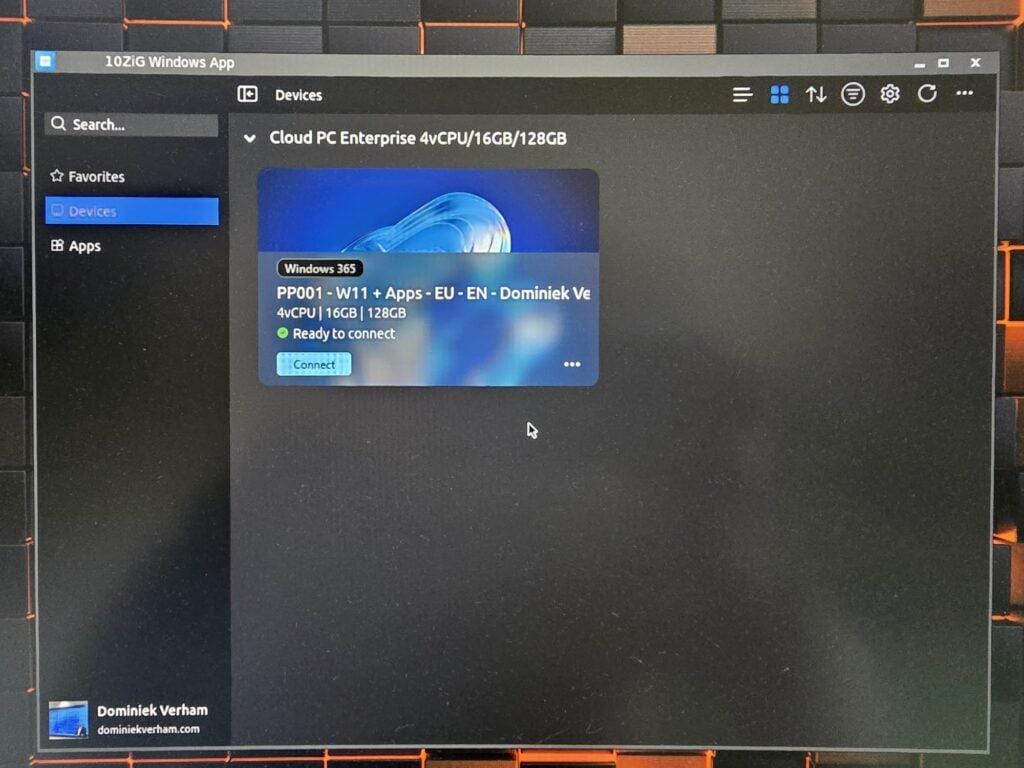
- The Windows App will give the Cloud PC the tag AI-Enabled. Update: The tag will be updated to: AI-Enabled (Frontier)
- The taskbar changes the magnifying glass icon to sparkling one, since you know, you just unlocked magic…
- Microsoft Intune will report that the Cloud PC is AI-enabled.


Now that we know how AI tasks are processed and how AI features are enabled on Cloud PCs, we can shift gears and take a look at…
AI features we can already use
At the time of writing we have 18 AI features scattered across Windows 11 and it’s apps. Let’s take a look at the various AI features, the platform they are available on and an explanation what it does:
AI feature | Platform | Explanation |
|---|---|---|
Copilot+ PCs |
Windows Search is expanded with AI suggestions. You have the ability to describe a problem and the search result will update the result to solve the problem. | |
Copilot+ PCs |
Auto SR uses AI to improve the graphics of games played on a Copilot+ device running a Snapdragon X series processor. The list of supported games can be found on www.worksonwoa.com. | |
Copilot+ PCs & AI-enabled Cloud PCs |
Use AI to perform a task depending on what is presented on your screen. Examples are opening a website if the text is a URL that is highlighted, or create summaries. Another example is to blur or remove the background of an image. | |
Copilot+ PCs & AI-enabled Cloud PCs |
Windows Search is available on Windows 11. Improved Windows Search adds semantic search capabilities so you can search for the word, like animal, and find pictures of a cat, dog or horse for example. | |
Copilot+ PCs |
Use AI to turn voice into text by providing automatic transcription. | |
Copilot+ PCs |
Use AI to read text out loud. Narrator can also describe images in detail if you are using an AMD or Intel powered Copilot+ PC. Snapdragon processors do not support this. | |
Copilot+ PCs |
The Recall feature is meant to help users retrace their steps by enabling users to see what was presented on their screen at a given moment. You can opt-in on this feature on a Copilot+ PC. Once enabled, the feature will save snapshots and metadata locally on the device. | |
Copilot+ PCs |
Uses AI to automatically adjust the capture area to on-screen content. | |
Copilot+ PCs |
Use AI to streamline the dictation process by automatically correct grammar, punctuation and filler words as you are speaking. | |
Copilot+ PCs |
Use AI to improve your presenting experiences by improving the lighting and remove unwanted background noises with noise cancelling abilities. |

Microsoft Paint and Photos have a couple of AI features to make your life a bit more easy. Let’s have a look and start with Microsoft Paint.
AI features for Microsoft Paint
AI Feature | Platform | Explanation |
|---|---|---|
Copilot+ PCs |
Cocreator requires an internet connection. Users provide a text description of what they are drawing and AI will improve the drawing in real-time. | |
Copilot+ PCs |
This feature requires a Copilot+ device with a Snapdragon processor. Use this feature to add AI generated objects into the image in Microsoft Paint. | |
Copilot+ PCs |
Use a text prompt to generate your own custom stickers. | |
Copilot+ PCs |
Use AI to automatically select objects in a drawing, eliminating the need to manually select an object in the image. |
Microsoft Paint will introduce you to AI features once you open it on a Copilot+ PC:

AI features for Microsoft Photos
AI Feature | Platform | Explanation |
|---|---|---|
Copilot+ PCs |
Use AI to add contextual AI generated styles to your images. Think of this like adding a filter to the image. | |
Copilot+ PCs |
Don't draw yourself. Instead save time! Type what you want to see and have Photos use AI to draw it for you. Level up your image further by using this feature together with Restyle Image. | |
Copilot+ PCs |
Use this AI feature to scale up low resolution images to high resolution images while making sure the images look sharp. |
Photos will not give you an introduction into the AI features, but they are easily found in the app itself. So what better way to test it out then answer the question on everyone’s mind… What does the worlds largest cappuccino look like?

Or a picture of Goku going super saiyan after drinking a coffee that big…

The real magic is getting the prompt right and of course these are just small examples. Using the right spelling could make all the difference in the world for the outcome:

And that is actually pretty cool! Enough with the silliness, you probably get the general idea.
I really like how fast the images were generated, just a couple of seconds per image and it just keeps on generating them until you stop the process. It’s also free to use, it only needs a Copilot+ PC. I can see this becoming a useful tool when I need to create images for my presentations, blogs or other business docs.
I hope this overview helps with getting a better understanding of AI features and the value it brings. Which feature do you like best?
Resources
Experience next-gen productivity with Windows 365 AI-enabled Cloud PCs – Windows IT Pro
Copilot+ PCs and Features for Businesses | Microsoft
AI-enabled Cloud PC (Frontier Preview) | Microsoft Learn
Windows 11 Specs and System Requirements | Microsoft Windows
HP Copilot+ PCs vs AI Laptops: Key Differences – HP® Tech Takes